
Today we are going to set up one of the most popular tools for developers and actually use it in a real way. If you are just starting Visual Studio Code can feel a bit confusing at first. But once you understand the basics everything becomes much easier and faster.
Instead of just talking about it we will go step by step. By the end you will have it installed, configured and you will run your first simple project. Nothing complicated just something real that works.
First you need to download the editor.
Download it from here:
https://code.visualstudio.com/
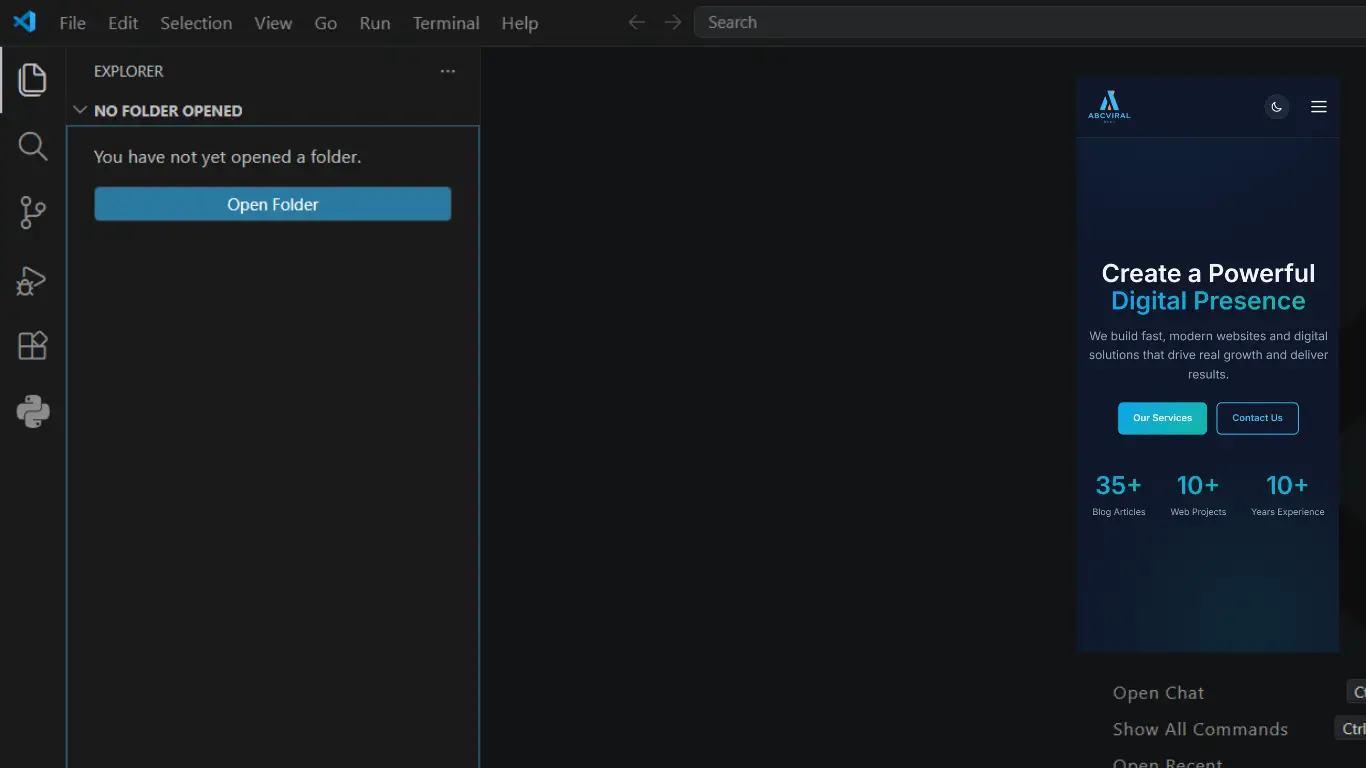
Open the website download the version for your system and install it like any normal program. Once you open it you will see a clean interface. On the left side there is a sidebar and in the center is your main workspace.
1. Creating Your First Project
Let’s not waste time. Create a new folder anywhere on your computer. Name it something simple like my-first-project.
Now open VS Code and click on:
- File → Open Folder
- Select your folder
That folder is now your workspace. Everything you create will live there.
2. Creating Your First File
Inside that folder create a new file called index.html.
<!DOCTYPE html>
<html>
<head>
  <title>My First Page</title>
</head>
<body>

  <h1>Hello World</h1>
  <p>This is my first page using VS Code</p>

</body>
</html>
Save the file then double click it or open it in your browser. That is your first result. Simple but real.
3. Installing Useful Extensions
Now let’s make VS Code more powerful. Go to the Extensions tab on the left side.
Search and install these:
- Live Server
- Prettier
- Auto Rename Tag
These will save you a lot of time. Especially Live Server because it lets you see changes instantly.
4. Using Live Server
Right click on your index.html file and click Open with Live Server.
Now your page opens in the browser. Try changing the text and saving the file. The browser refreshes automatically.
That is your first real workflow.
5. Adding Some Style
Let’s improve the page a bit so it doesn’t look boring.
Create a new file called style.css and add this:
body {
  font-family: Arial, sans-serif;
  background: #0f172a;
  color: #fff;
  text-align: center;
  padding-top: 50px;
}

h1 {
  color: #38bdf8;
}

p {
  color: #cbd5f5;
}
Now connect it to your HTML file:
<link rel="stylesheet" href="style.css">
Refresh your page and you will see the difference immediately.
6. Adding a Simple Button
Let’s make something interactive so it feels more real.
Update your HTML:
<button onclick="showMessage()">Click Me</button>

<p id="result"></p>
Now create a file called script.js:
function showMessage() {
  document.getElementById("result").textContent = "You clicked the button";
}
And connect it:
<script src="script.js"></script>
Now click the button in your browser. You will see the message appear. This is your first simple interaction.
7. Organizing Your Files
As your project grows things can get messy. A simple structure helps a lot.
my-first-project/
│
├── index.html
├── style.css
├── script.js
Later you can create folders like css, js or images but for now keep it simple.
8. Useful Shortcuts
Here are a few shortcuts you will use all the time:
- Ctrl + S → Save file
- Ctrl + / → Comment code
- Ctrl + D → Select next same word
- Alt + Up/Down → Move lines
These small things make a big difference over time.
9. Common Mistakes
A few things that beginners usually run into:
- Forgetting to save files
- Wrong file names like index.htm instead of index.html
- Not linking CSS or JS correctly
- Opening files without Live Server
If something does not work it is usually one of these.
10. What You Achieved
At this point you did more than just install an editor. You created a real project, styled it and added interaction.
This is the foundation for everything else. From here you can build bigger layouts, add more features and improve step by step.
“Small projects like this are how real progress starts. Not theory but doing.”
Final Thoughts
You do not need to learn everything at once. Just keep building small things and improving them. VS Code will become natural to you the more you use it.
Next time try adding more elements, styles or even another page. That is how you move forward.