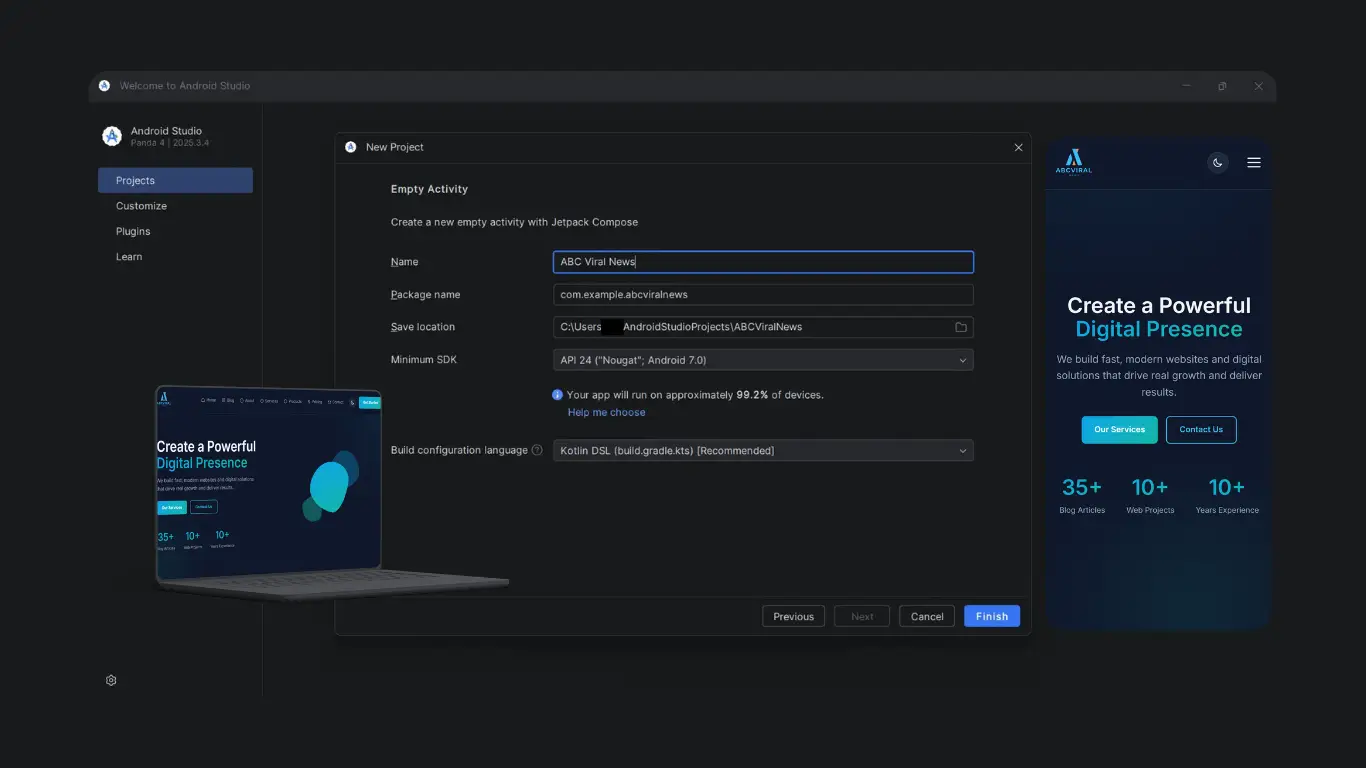

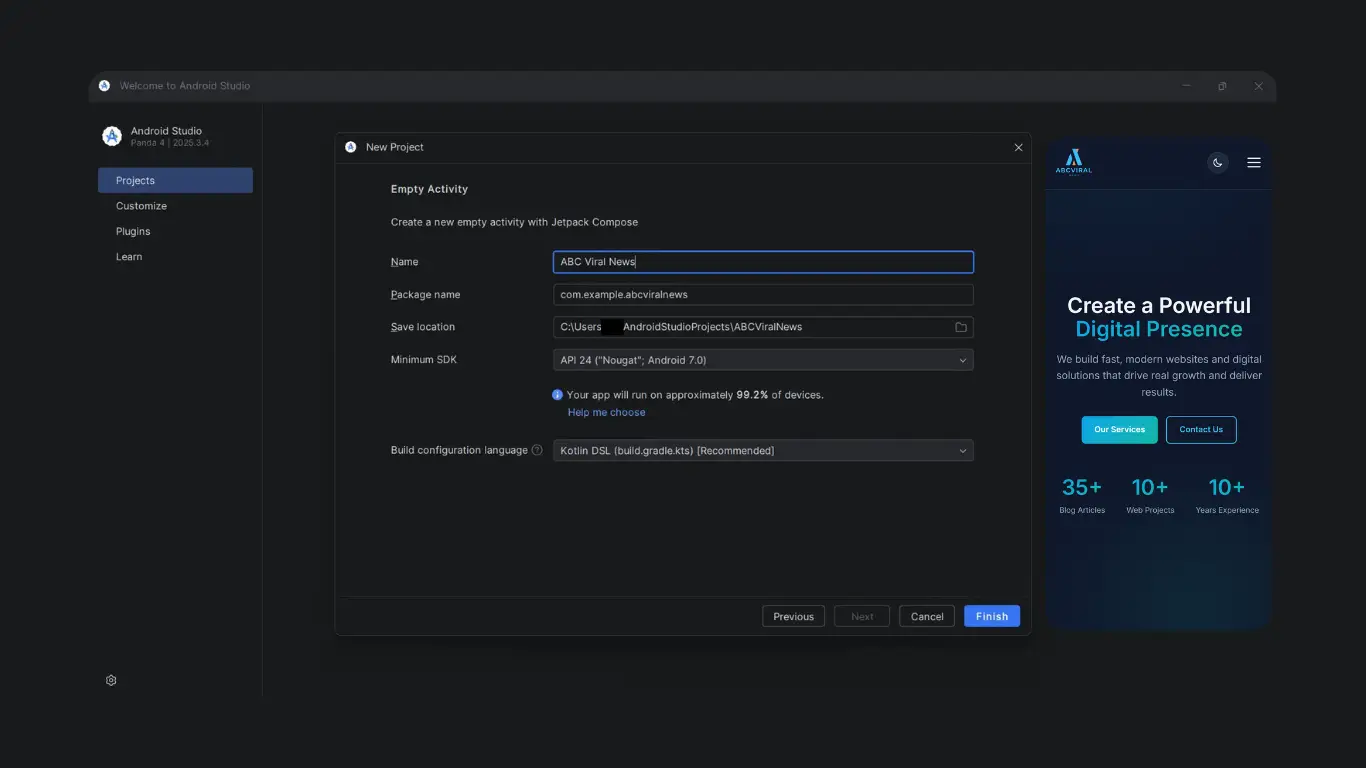
WebView apps are often used as a practical solution for bringing existing websites to mobile devices without rebuilding the entire platform. While the setup itself is relatively simple, creating an experience that actually feels smooth and natural on mobile requires additional attention to usability, responsiveness and interaction design.
This approach works especially well for blogs, dashboards, internal systems and content-focused platforms that are already optimized for mobile devices.
For the full setup process, take a look here turning a website into an Android app using WebView. Once the basic setup is complete, the next step is improving how the app actually feels during daily use.
The website experience matters first
One thing I noticed while testing WebView apps is that the Android layer does not hide website problems. It makes them more noticeable, especially on smaller screens.
Slow sections, oversized images and inconsistent spacing immediately affect the mobile experience. Even layouts that feel acceptable on desktop can feel crowded inside a mobile app.
Opening the website in mobile view and navigating through it like a regular user quickly reveals weak areas. Simple actions such as scrolling, opening menus or switching pages help identify problems faster than desktop testing.
Improving those parts usually has the biggest impact on the final app experience.
Navigation should feel predictable
Navigation consistency plays a major role in making a WebView app feel stable. Every page should follow the same structure and interaction flow.
During testing, unexpected redirects and inconsistent button placement often made the app feel less polished, even when the functionality itself worked correctly.
Keeping navigation simple and predictable improves usability immediately. Users should always understand where a button leads and what happens after each interaction.
Small adjustments in structure often make the app feel much more natural on mobile devices.
Loading feedback improves the experience
One common issue with WebView apps is the blank white screen that sometimes appears while pages are loading.
Even short loading times can feel slow without visible feedback. Adding a loading indicator or progress bar makes the app feel more responsive and reassures users that content is loading correctly.
This is a small improvement, but it changes how smooth the application feels during regular use.
Visual details create a more native feel
Simple visual elements help the app feel more complete. A clean app icon, splash screen and consistent color palette improve the first impression immediately.
Without these details, many WebView apps feel unfinished even if the functionality works properly.
The goal is not to overdesign the application. Keeping the interface minimal and consistent usually creates a better mobile experience.
Real interaction testing is important
Basic browsing only shows part of the experience. Real testing starts when forms, uploads and user interactions are involved.
While testing WebView apps, I noticed that login forms, file uploads and permissions sometimes behave differently depending on the device or Android version.
Checking these interactions manually helps prevent usability problems later. Even small issues during login or navigation can make the app feel unreliable.
Testing on different screen sizes also helps identify layout problems earlier.
Performance affects how the app feels
Users usually judge the experience based on responsiveness rather than technical complexity.
Heavy animations, large images and unnecessary scripts can make the interface feel delayed inside WebView apps, especially on lower-end devices.
Reducing unnecessary elements and optimizing content delivery often improves the experience more than adding extra features.
Even simple performance improvements can make the application feel smoother and more reliable.
Where WebView apps work best
WebView apps are usually most effective for platforms focused on content, dashboards, blogs or internal systems.
These types of websites already rely on structured layouts and simple navigation, which translates well into a mobile application format.
Projects that depend heavily on device hardware or advanced native interactions may require a different approach, but many websites work surprisingly well inside a properly optimized WebView setup.
Small improvements make the biggest difference
One thing that became clear during testing is that small refinements often improve the experience more than major redesigns.
Adjusting spacing, improving loading behavior and simplifying navigation gradually makes the app feel more polished over time.
Each improvement reduces friction and helps create a smoother mobile experience.
That process is what transforms a simple WebView wrapper into something users actually enjoy using.
Final thoughts
Building a WebView app is not only about loading a website inside Android. The overall experience depends on responsiveness, navigation clarity and usability across different devices.
Starting with a mobile-optimized website creates a strong foundation. From there, small improvements in interaction and performance help the app feel more natural and reliable.
With enough attention to detail, a WebView app can provide a surprisingly smooth mobile experience while keeping development simple and efficient.