
Starting a website used to be something only developers could do. You needed coding knowledge hosting experience and hours of setup just to get a simple homepage online. Today platforms like Wix have completely changed that.
Whether you want to launch a personal blog portfolio business website or even an online store Wix makes the process simple enough for beginners while still offering powerful customization options for advanced users.
In this tutorial I’ll walk you through exactly how to create a website on Wix from scratch including how to register choose a template customize your site and publish it online.
If this is your first time building a website don’t worry. Everything is explained step by step in a simple way.
Official Website: Wix
Why Choose Wix?
Before we start let’s quickly talk about why so many people use Wix.
Wix is one of the most popular website builders in the world because it offers:
- Drag and drop website editing
- Hundreds of professional templates
- No coding required
- Free hosting
- Mobile optimization
- SEO tools built in
- Online store support
- Blogging features
For beginners it’s one of the easiest ways to create a professional looking website in just a few hours.
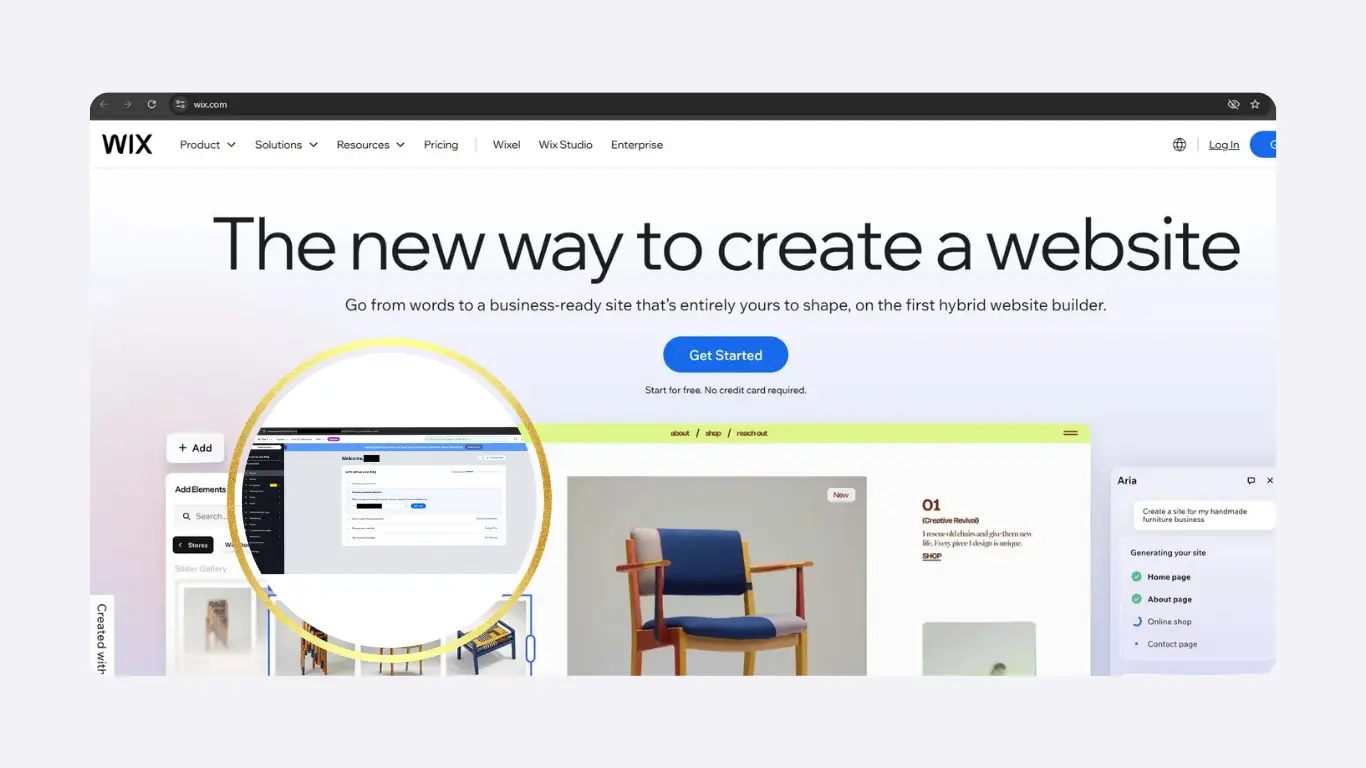
Step 1: Visit the Official Wix Website
First open your browser and go to the official Wix homepage: Wix
Once the page loads click the Get Started button.
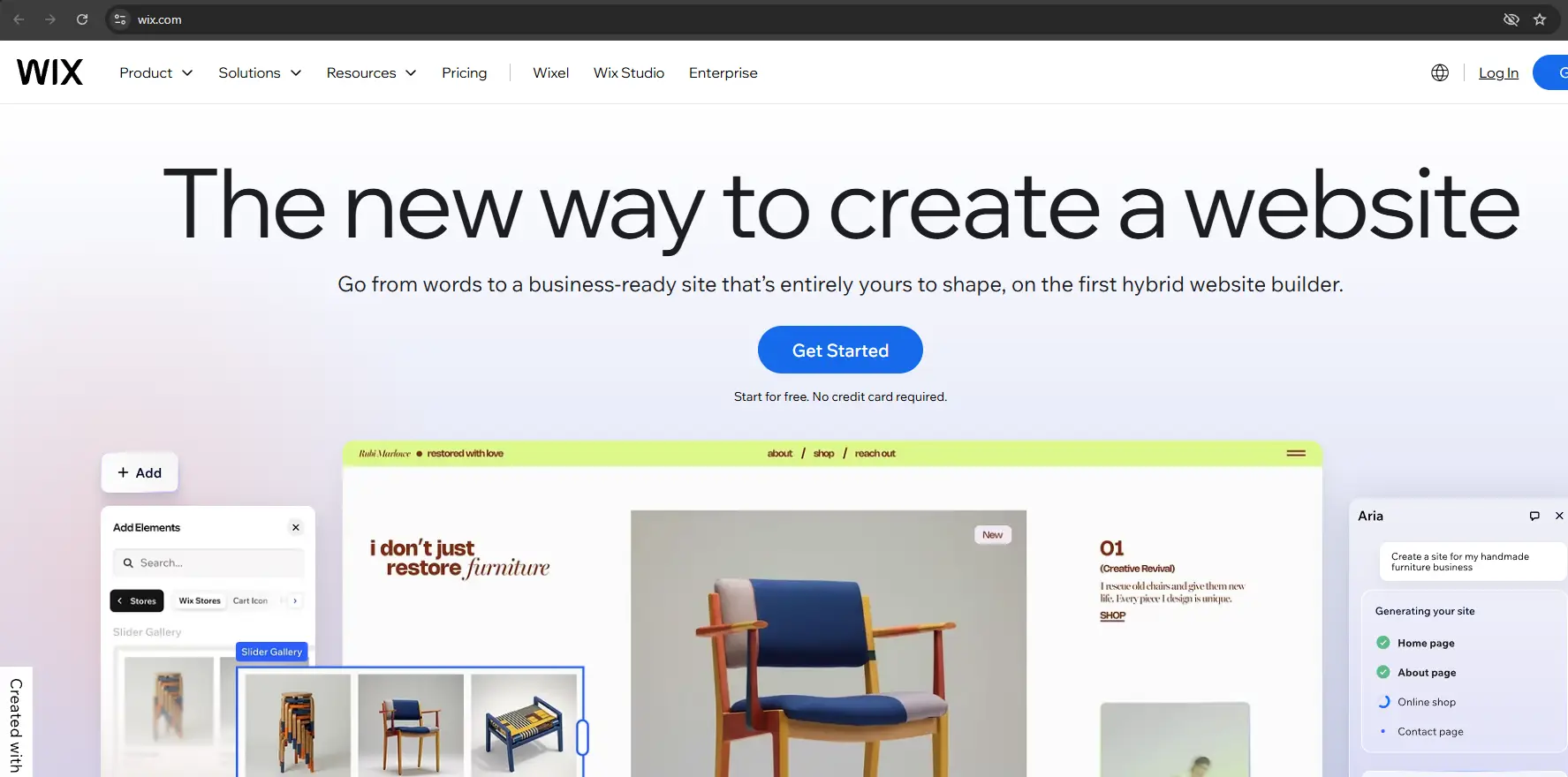
This will take you to the registration page.
Step 2: Create Your Wix Account
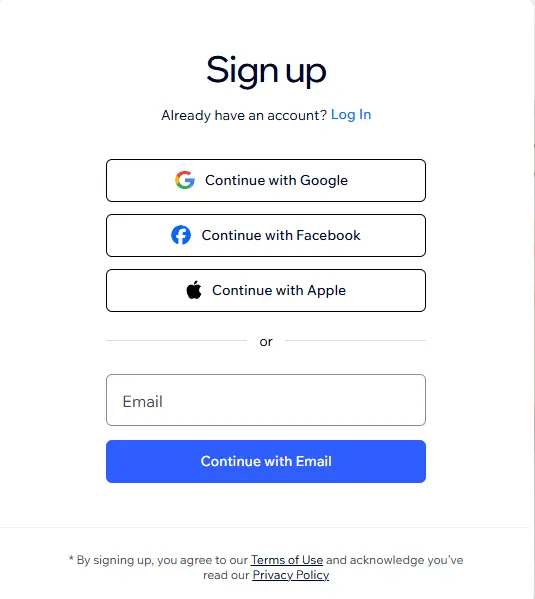
You can create an account using:
- Your email address
- Google account
- Facebook account
- Apple account
For most users signing up with Google is the fastest option.
Fill in your information and create your account.
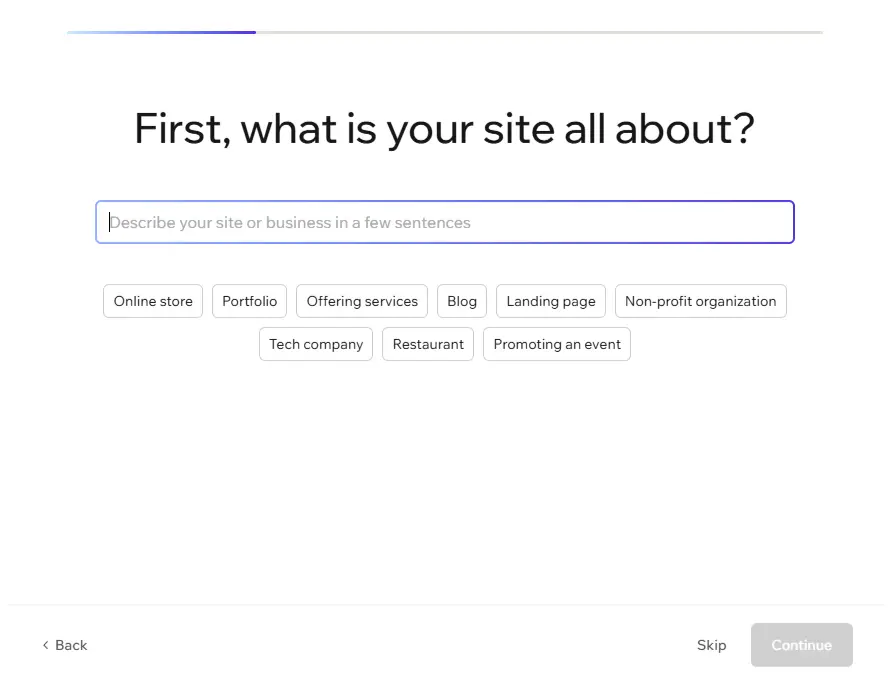
After registration Wix will ask a few questions about the type of website you want to create.
For example:
- Blog
- Business website
- Online store
- Portfolio
- Restaurant website
- Personal website
Choose the option that best matches your project.
Step 3: Choose How You Want to Build Your Website
Wix usually gives you two options.
Option 1: Wix AI Website Builder
This option allows Wix AI to create a website automatically based on your answers.
It’s fast simple and beginner friendly.
Option 2: Choose a Template Manually
This gives you more control over design and layout.
If you want full customization I recommend choosing a template manually.
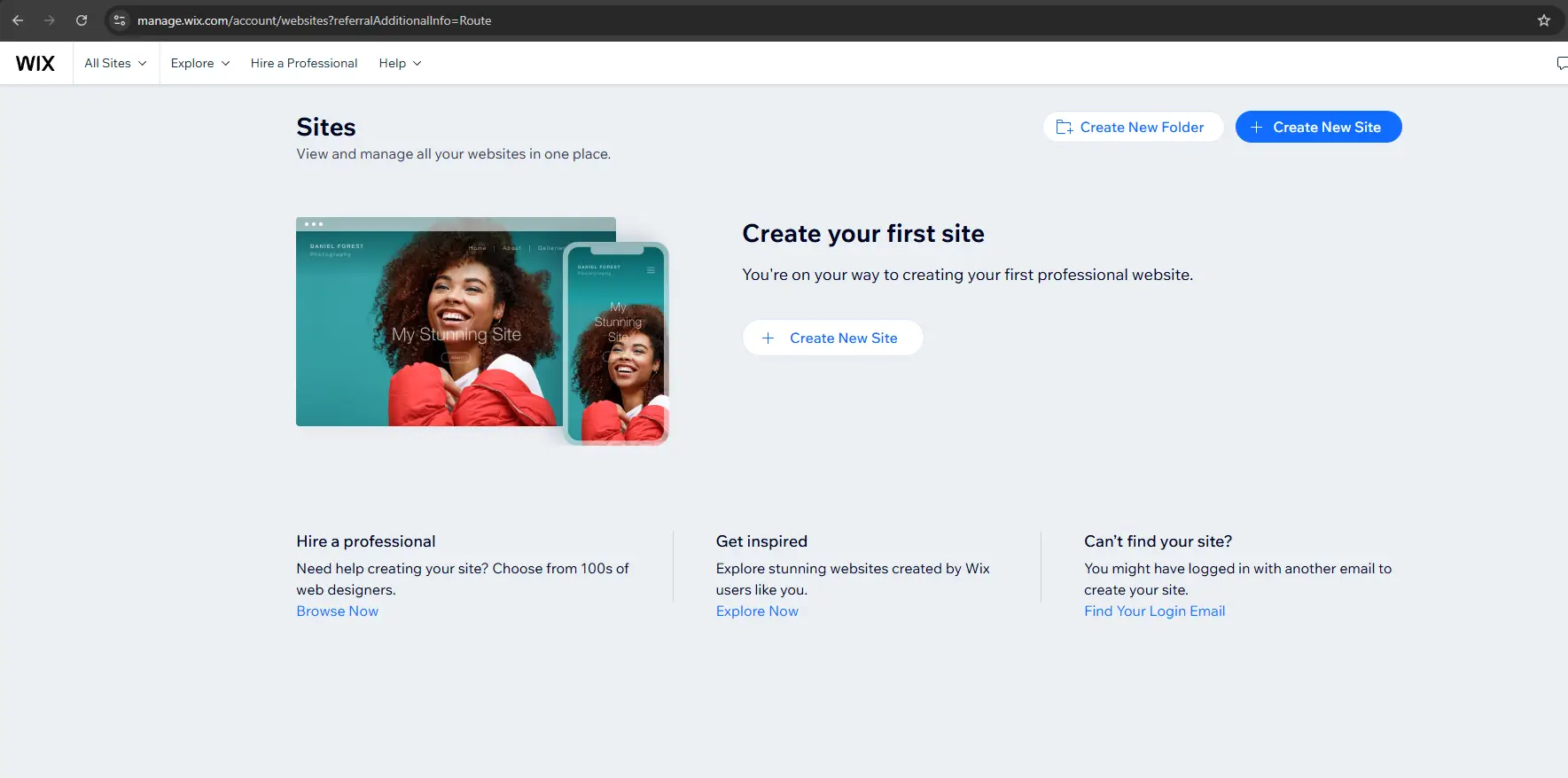
Step 4: Select a Website Template
Wix offers hundreds of professionally designed templates.
You can browse categories like:
- Business
- Fashion
- Photography
- Technology
- Blog
- Education
- Fitness
For a clean and modern website choose a template that looks simple and easy to navigate.
A common mistake beginners make is selecting templates with too many animations or crowded sections.
Minimal designs usually perform better for user experience and SEO.
Once you find a template you like click Edit.
Step 5: Customize Your Website
Now comes the fun part.
The Wix editor works with drag and drop functionality which means you can move elements around without coding.
You can edit:
- Text
- Images
- Buttons
- Colors
- Fonts
- Sections
- Menus
- Backgrounds
Simply click on any element to modify it.
Tips for Better Website Design
Here are a few simple tips that make websites look more professional.
Keep Your Design Clean
Avoid adding too many colors or animations.
Use High Quality Images
Blurry images instantly make a website look outdated.
Make Navigation Simple
Users should find pages easily.
Use Readable Fonts
Simple fonts usually work best.
Optimize for Mobile
Most visitors today browse from smartphones.
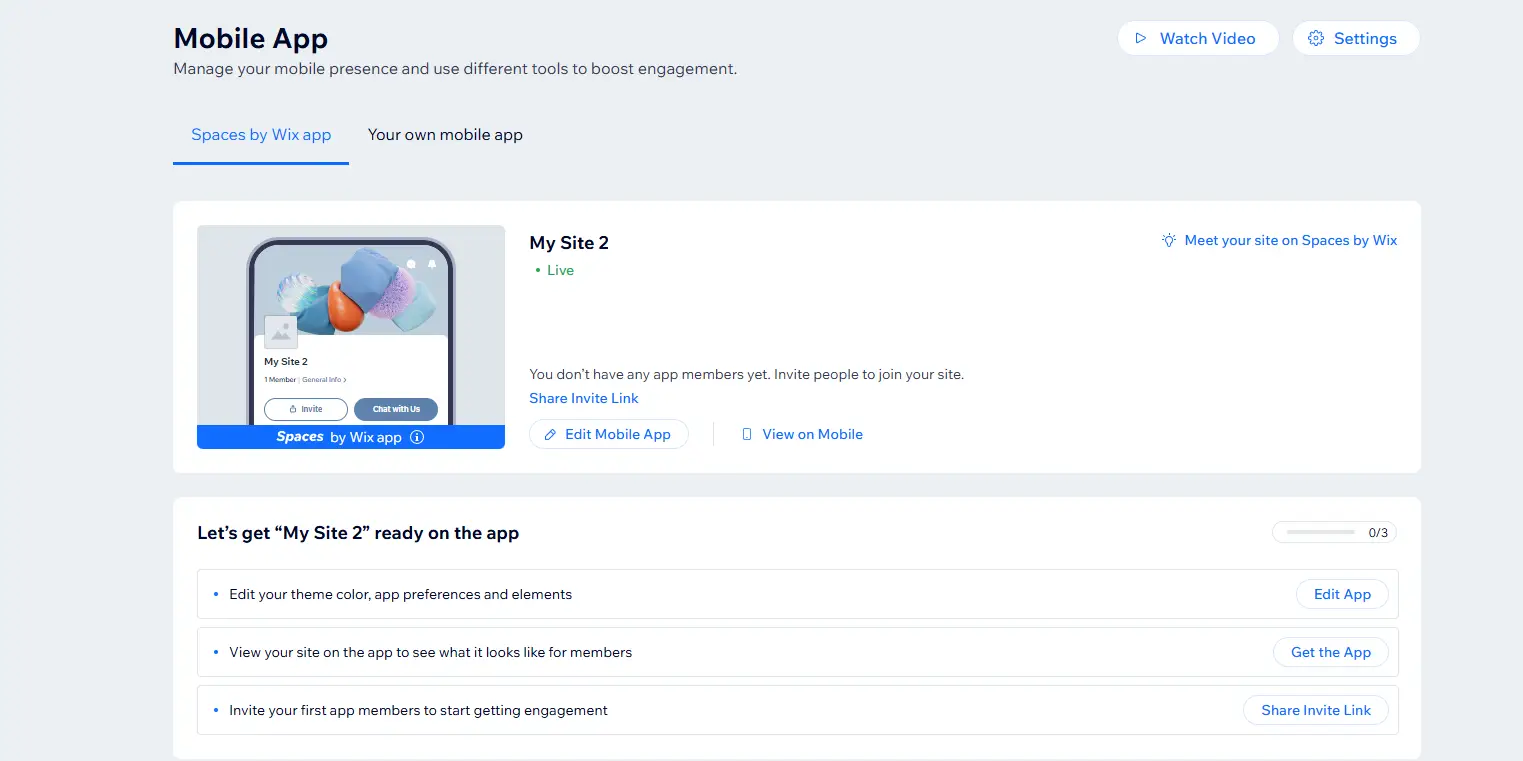
You can check the mobile version inside the Wix editor.
Step 6: Create Important Pages
If you want your website to look more complete and trustworthy you should include a few important pages that help visitors understand your site better such as:
- Home
- About Us
- Contact
- Privacy Policy
- Terms and Conditions
- Blog
These pages help your website appear more professional and legitimate.
About Us Page
Tell visitors who you are and what your website is about.
Make it personal authentic and simple.
Contact Page
Add:
- Email address
- Contact form
- Social media links
Privacy Policy Page
You can generate a simple privacy policy using online generators or write your own version.
Step 7: Add a Blog to Your Website
One of the best features on Wix is the built in blogging system.
To add a blog:
- Go to the left sidebar
- Click Blog
- Add Wix Blog
Now you can create articles tutorials guides and updates.
Step 8: Optimize Your Website for SEO
SEO stands for Search Engine Optimization. It helps your website appear on Google search results.
Wix already includes useful SEO tools.
To improve SEO:
- Use keywords naturally
- Write unique content
- Add meta descriptions
- Use headings properly
- Optimize images
- Create internal links
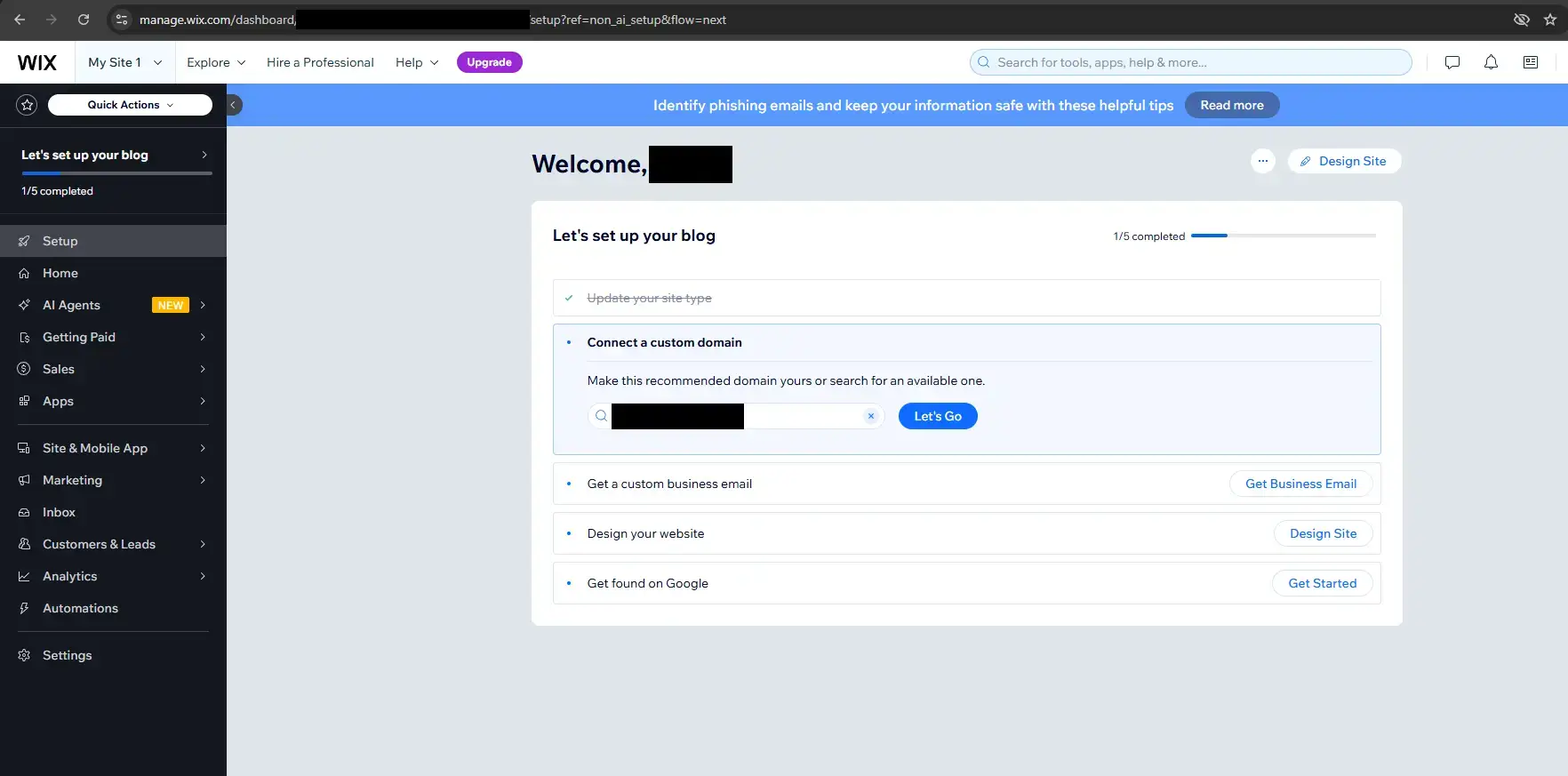
Wix also provides an SEO setup checklist inside the dashboard.
Step 9: Connect a Custom Domain
Free Wix websites usually include Wix branding inside the URL.
Example: yourwebsite.wixsite.com
For a more professional website connect your own custom domain.
Example: yourwebsite.com
To do this:
- Go to Settings
- Click Domains
- Choose Connect Domain
You can buy domains directly from Wix or from providers like:
- Namecheap
- GoDaddy
- Cloudflare
Step 10: Publish Your Website
Once everything looks good click the Publish button in the top right corner.
Congratulations. Your website is now live.
Is Wix Good for Beginners?
Absolutely.
Wix is one of the easiest platforms for beginners who want to create websites without coding.
It’s especially useful for:
- Personal websites
- Blogs
- Small businesses
- Portfolios
- Freelancers
- Online stores
The drag and drop system makes everything simple even if you have never built a website before.
My Experience Using Wix
Building a website in 2026 is much easier than it was years ago and Wix proves that you do not need advanced technical skills to create something professional.
If you are just getting started focus on:
- Clean design
- Useful content
- Mobile optimization
- Fast loading speed
- Consistent blogging
Over time your website can grow into a real brand business or source of online income.
The most important step is simply starting.
Official Wix Website | Create Your Free Account Here | Wix Templates | SEO Guide by Wix