
While building websites you quickly notice that pages are not just static anymore. Things change when you click or interact. That is where DOM manipulation comes in. It might sound technical at first but once you see it in action it becomes much easier to understand.
Instead of pages being static and just sitting there JavaScript lets you change things while the user is still on the page. No refresh needed. You click something and the page reacts immediately. That is a simple example of the DOM in action.
In this article we are not going deep into theory. We will build small examples that you can actually try. That is how this starts to feel natural.
1. What the DOM Really Is
When your browser loads an HTML page it does not just show it as text. It creates a structure in memory. Every element becomes something JavaScript can access.
Think of it like this. Your HTML is turned into objects. Headings buttons paragraphs all of them become things you can control.
That is why when you click a button and something changes instantly that is not magic. It is JavaScript working with the DOM.
2. Selecting Elements
Before you change anything you need to select it. This is something you will do all the time so it is worth understanding early.
const title = document.querySelector("h1");
const button = document.getElementById("btn");
The first line grabs the first h1 element. The second one selects an element by its id.
In real projects most people use querySelector because it is flexible. You can target classes ids or elements easily.
3. Changing Text Content
Now that you have the element you can change it.
title.textContent = "Welcome to My Website";
Save your file and you will see the change immediately if you are using Live Server.
There is also innerHTML which lets you insert HTML but do not overuse it. textContent is safer and cleaner for most cases.
4. Making Things Interactive
Now let’s make something happen when the user clicks a button.
button.addEventListener("click", () => {
  alert("Button clicked");
});
Simple but powerful. This is the moment when your page stops being static.
You can listen to many events not just clicks. Typing hover scrolling and more.
5. Real Example You Can Try
Let’s build a small working example so it feels real.
HTML:
<h2 id="text">Click the button</h2>
<button id="changeBtn">Change Text</button>
JavaScript:
const text = document.getElementById("text");
const changeBtn = document.getElementById("changeBtn");

changeBtn.addEventListener("click", () => {
  text.textContent = "Text changed using JavaScript";
});
Open this with Live Server and click the button. You will see the text update instantly. That is a real DOM interaction.
6. Creating Elements Dynamically
You are not limited to what is already in your HTML. You can create new elements on the fly.
const newParagraph = document.createElement("p");
newParagraph.textContent = "This was added dynamically";

document.body.appendChild(newParagraph);
This adds a new paragraph to your page without refreshing.
This is used in real apps for notifications comments lists and dynamic content.
7. Removing Elements
Sometimes you want to remove things as well.
newParagraph.remove();
That is all it takes. Create update remove. These are the core actions.
8. Working with Classes
You can also change styles by adding or removing classes.
const box = document.querySelector(".box");

box.classList.add("active");
box.classList.remove("active");
This is much cleaner than changing styles manually with JavaScript.
Example CSS:
.box {
  width: 100px;
  height: 100px;
  background: gray;
}

.active {
  background: #22c55e;
}
Now when you add the class the color changes instantly.
9. Small Interactive Demo
Let’s combine everything into something slightly more useful.
HTML:
<button id="toggleBtn">Toggle Box</button>
<div id="box" class="box"></div>
JavaScript:
const toggleBtn = document.getElementById("toggleBtn");
const box = document.getElementById("box");

toggleBtn.addEventListener("click", () => {
  box.classList.toggle("active");
});
CSS:
.box {
  width: 120px;
  height: 120px;
  background: #374151;
  margin-top: 20px;
  transition: 0.3s;
}

.active {
  background: #22c55e;
}
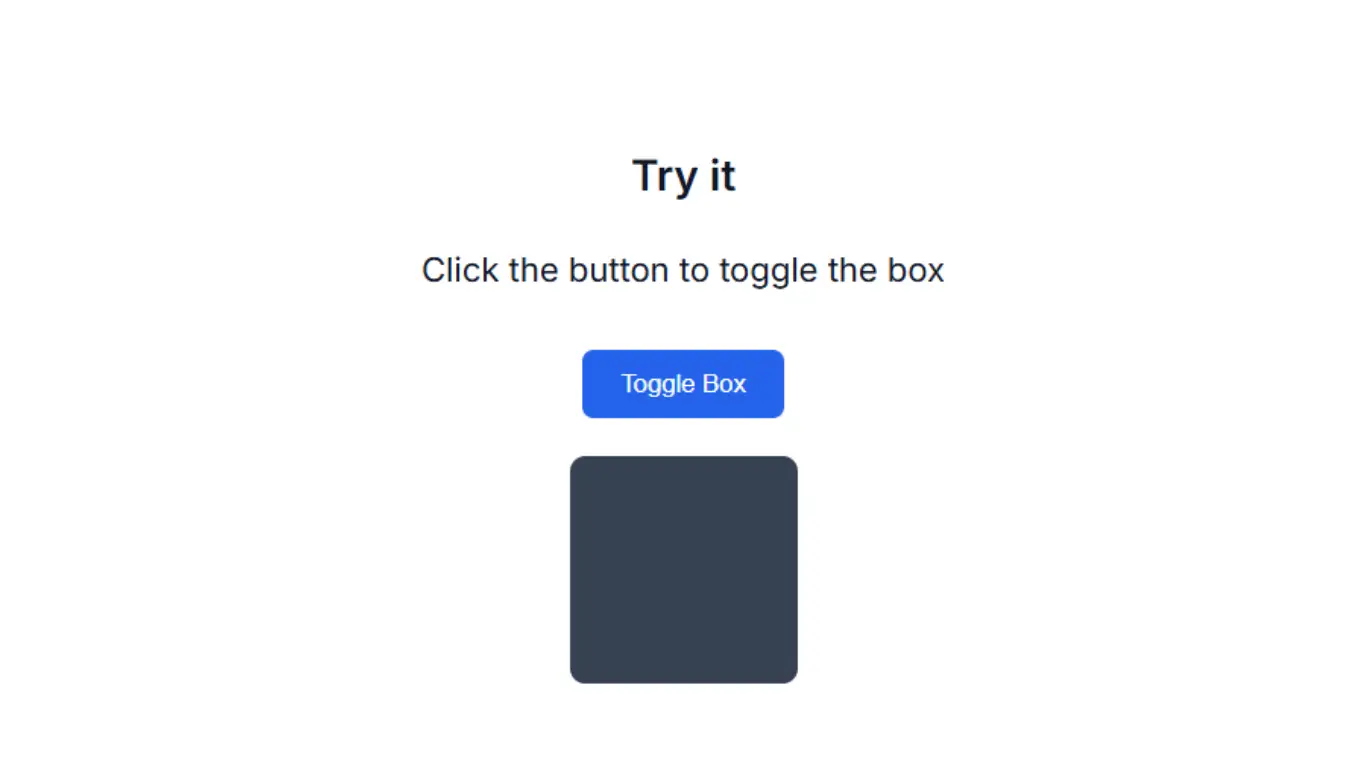
Live demo:
Try it
Click the button to toggle the box
Click the button and the box changes color. This is a simple but real UI interaction.
10. Common Beginner Issues
Some things that can confuse you at the beginning:
- Trying to select elements before the page loads
- Using wrong selectors
- Forgetting to link your JavaScript file
- Not checking the browser console for errors
If something does not work it is usually one of these.
11. Why This Matters
DOM manipulation is not just for small demos. Every modern website uses it in some way.
When you like a post open a modal switch tabs or see content update without refresh that is all DOM work behind the scenes.
“Once you understand this, you move from static pages to real interactive experiences.”
Closing Thoughts
You do not need to memorize everything here. The important part is trying it yourself.
Start small. Change text. Add a button. Create something simple and build from there.
Over time this becomes second nature and you will not even think about it when building real projects.